Mastering Photographic Histograms: The key to fine-tuning exposure and better photo editing. by Al Judge
Author:Al Judge [Judge, Al]
Language: eng
Format: epub
Publisher: UNKNOWN
Published: 2016-10-31T00:00:00+00:00
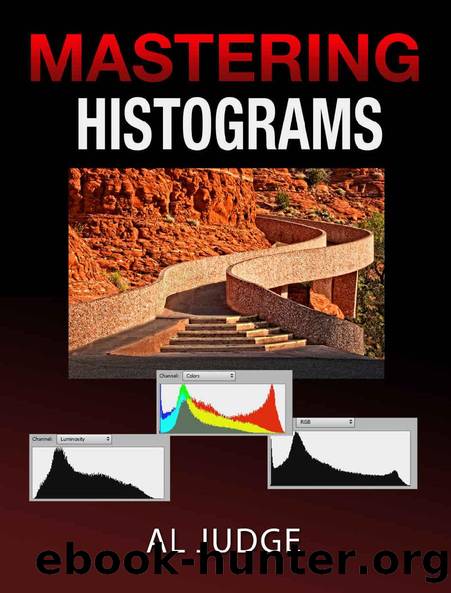
The RGB Histogram on the right combines all the data from the three color channels to create a single histogram. The RGB Histogram can be very useful in post processing in a program like Photoshop. Most adjustment layers in Photoshop work by altering this histogram, so it is a valuable tool to be able to watch it change as you edit your image.
The Colors option in Photoshop displays the three Color Channel Histograms (Figure 24) in colors in one image so that you can see which color is contributing to each feature of the histogram. The shape of this histogram often looks like the RGB Histogram, but not always. The height of each Color Channel Histogram is determined by the highest bar in that particular color channel histogram. This can be misleading when the three histograms are combined to form the Colors Histogram.
With this option, the gray area is the overlap of all three Color Channel Histograms. The Blue indicates an area that is totally blue. The same is true for Red and Green. Where Red and Green overlap Yellow is displayed. Where Red and Blue overlap Magenta is displayed. Where Blue and Green overlap Cyan is displayed.
Download
This site does not store any files on its server. We only index and link to content provided by other sites. Please contact the content providers to delete copyright contents if any and email us, we'll remove relevant links or contents immediately.
Shoot Sexy by Ryan Armbrust(17728)
Portrait Mastery in Black & White: Learn the Signature Style of a Legendary Photographer by Tim Kelly(17006)
Adobe Camera Raw For Digital Photographers Only by Rob Sheppard(16976)
Photographically Speaking: A Deeper Look at Creating Stronger Images (Eva Spring's Library) by David duChemin(16688)
Bombshells: Glamour Girls of a Lifetime by Sullivan Steve(14076)
Art Nude Photography Explained: How to Photograph and Understand Great Art Nude Images by Simon Walden(13046)
Perfect Rhythm by Jae(5404)
Pillow Thoughts by Courtney Peppernell(4284)
The Book of Joy by Dalai Lama(3986)
Good by S. Walden(3560)
The Pixar Touch by David A. Price(3439)
A Dictionary of Sociology by Unknown(3085)
Fantastic Beasts: The Crimes of Grindelwald by J. K. Rowling(3059)
Stacked Decks by The Rotenberg Collection(2883)
Humans of New York by Brandon Stanton(2873)
Read This If You Want to Take Great Photographs by Carroll Henry(2711)
On Photography by Susan Sontag(2640)
Insomniac City by Bill Hayes(2558)
Photographic Guide to the Birds of Indonesia by Strange Morten;(2534)
